**NOTE: This help article was written for our Olark Classic chat console. Some things may not apply, may have moved, or may look different. For up to date chat console documentation, click here.
Share this guide with your team to start chatting with your website’s visitors in minutes.
The guide is broken into four parts.
- Using the Chat Console
- Your Olark dashboard
- Your organization’s Olark settings
- Pre-chat checklist
We recommend reading through this guide fully at least once. You can also bookmark it for quick reference when you’re chatting with visitors in the future. New agents can also find some helpful videos on our Product Tour page.
Using the Chat Console
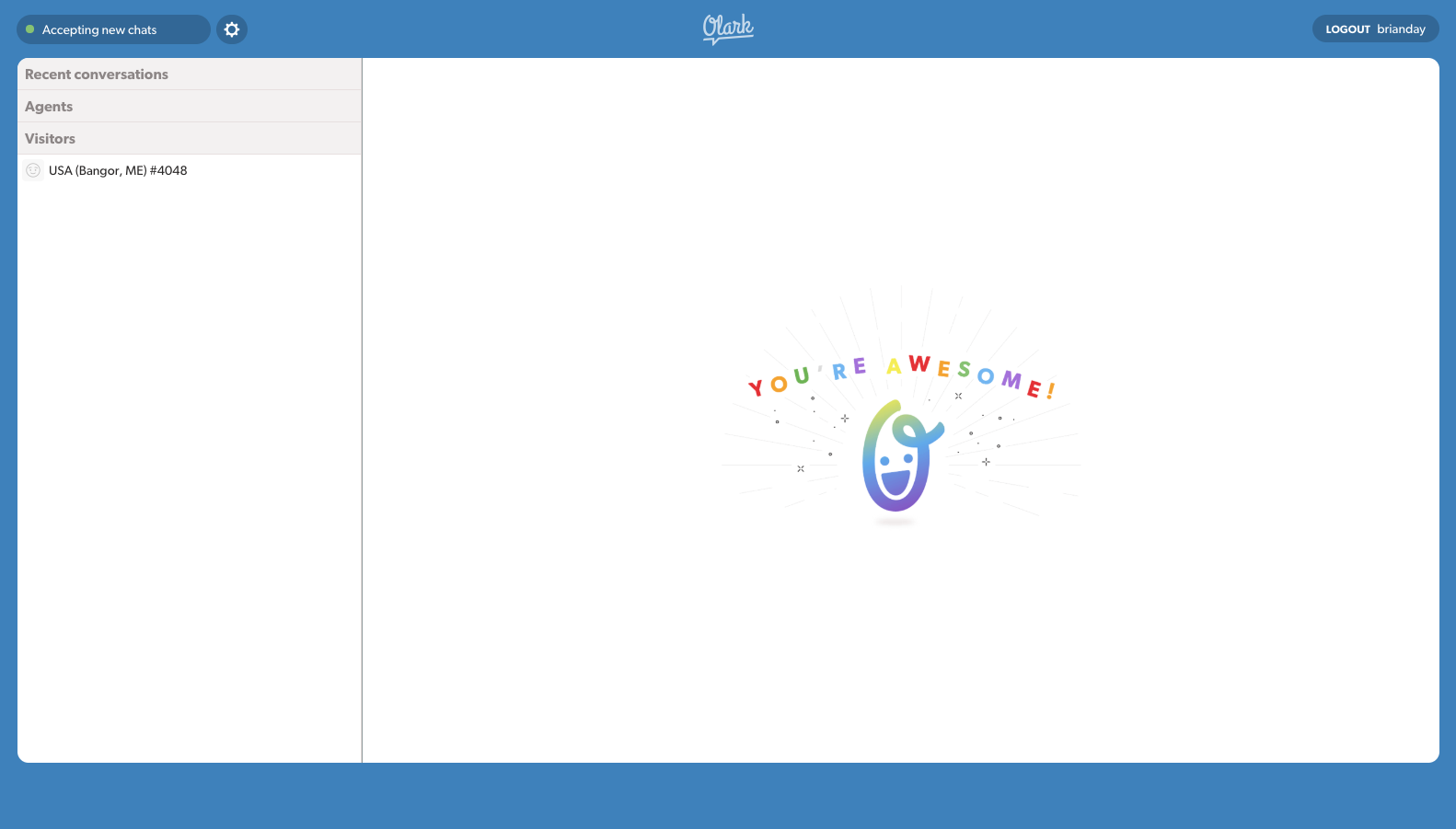
Open the Chat Console in a new browser tab, so you can follow along as we explain the chat console section by section.
Changing Your Status
When you log in to the Chat Console, your status will be remembered from the last time you were logged in.
Click on the button in the top left that says “Not Accepting New Chats” to set yourself to available/online. The button text will change to Accepting New Chats. The background color will be a bright sky blue when you are available.
Pro Tip: If you get a bunch of difficult chats at once, set yourself to Not Accepting New Chats, so that you can focus on finishing the chats you have open.
The gear icon next to the status toggle button contains several settings, such as the alert sound , which you’ll hear every time a visitor sends you a message, or when you receive a notification. Check out our guide on how to enable desktop notifications.
Why was I forced away from chat? If you receive a new conversation and we don’t see any chat activity from you within five minutes , we send a notification asking if you’re still there. If you don’t respond to the visitor or that notification, your status will automatically be set to away so that other visitors will not start conversations that go unanswered. You can set your status to available again at any time. Check out our being forced away article for more information.
Using the Visitor List
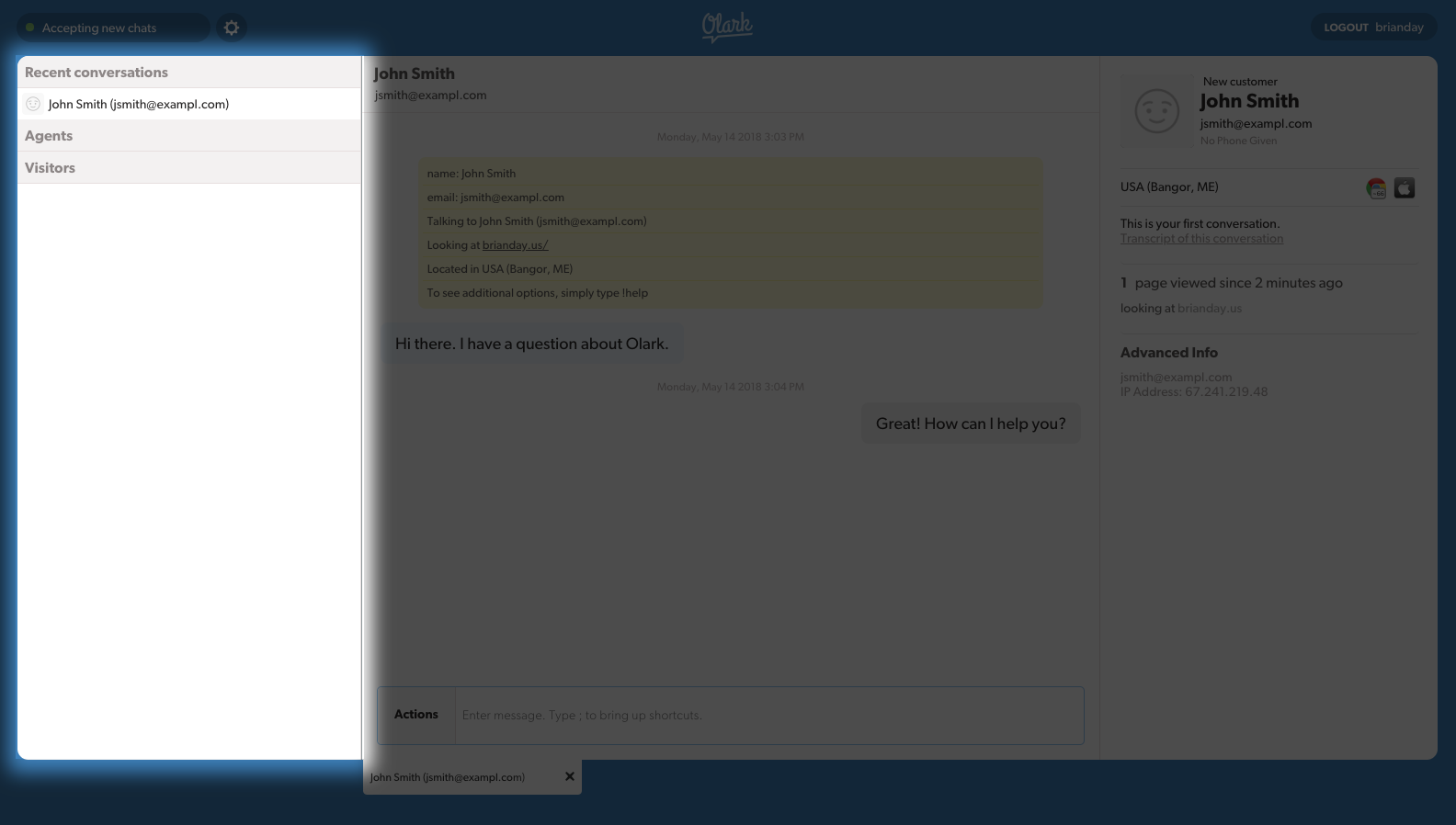
- Recent Conversations: Visitors who you have recently chatted with.
- Agents: The other agents from your organization who are logged in to chat. Click on an agent’s name to chat with them. Agent-to-agent conversations are not stored in your chat transcripts.
- Visitors: The people currently on your site. Click on a visitor’s name to start a chat with them.
When you see visitor details in red text, they are chatting with another agent on your account.
Proactive chatting: Check out the other ways you can proactively chat with visitors.
Conversation Panel
This is what it looks like when you receive (or initiate) your first chat.
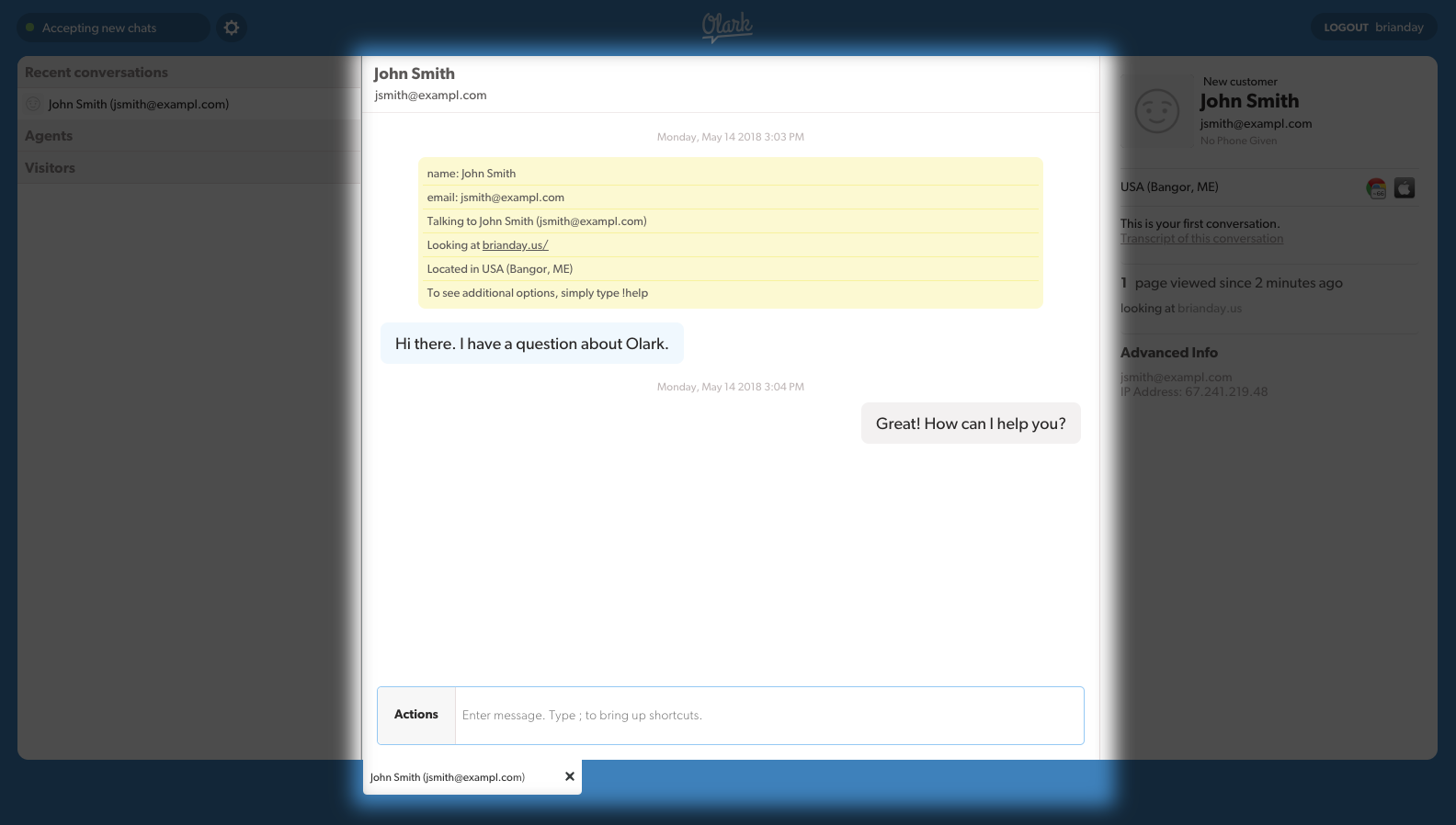
Displayed at the top of every new conversation are details such as the visitor’s current URL (the page they’re currently on) and referrer URL (the original URL that sent the visitor to your site, if known).
Type your reply in the text area at the bottom and hit Enter to send the message.
You can manually end a chat with a visitor by either clicking the X icon to close the conversation tab or using the agent !end command. Both the agent and the visitor will receive a notification saying that the chat has ended.
Commands and Shortcuts will allow you to become a productivity superhero.
Agent Commands
Commands are short phrases preceded by an exclamation point to execute agent actions, such as !transfer, !transcript and !end. Be sure to check out the full list of available commands.
- Want to transfer a chat to another chat agent? Type in !transfer and hit return.
- Want to pull up the transcript URL for the current chat? Type in “!transcript” and hit return.
- Want to let the visitor know the chat is over? Type in “!end” and hit return.
You can also click the Actions button to bring up a list of common commands.
Agent Shortcuts
Want a faster way to type out your most common phrases? Shortcuts allow you to create commands that expand to user-created greetings, messages, or links. Shortcuts are preceded by the semicolon (;) key. Your account administrator can create team-wide Shortcuts, while agents can create their own personalized Shortcuts. Check out how to set up Shortcuts for more information.
Visitor Information
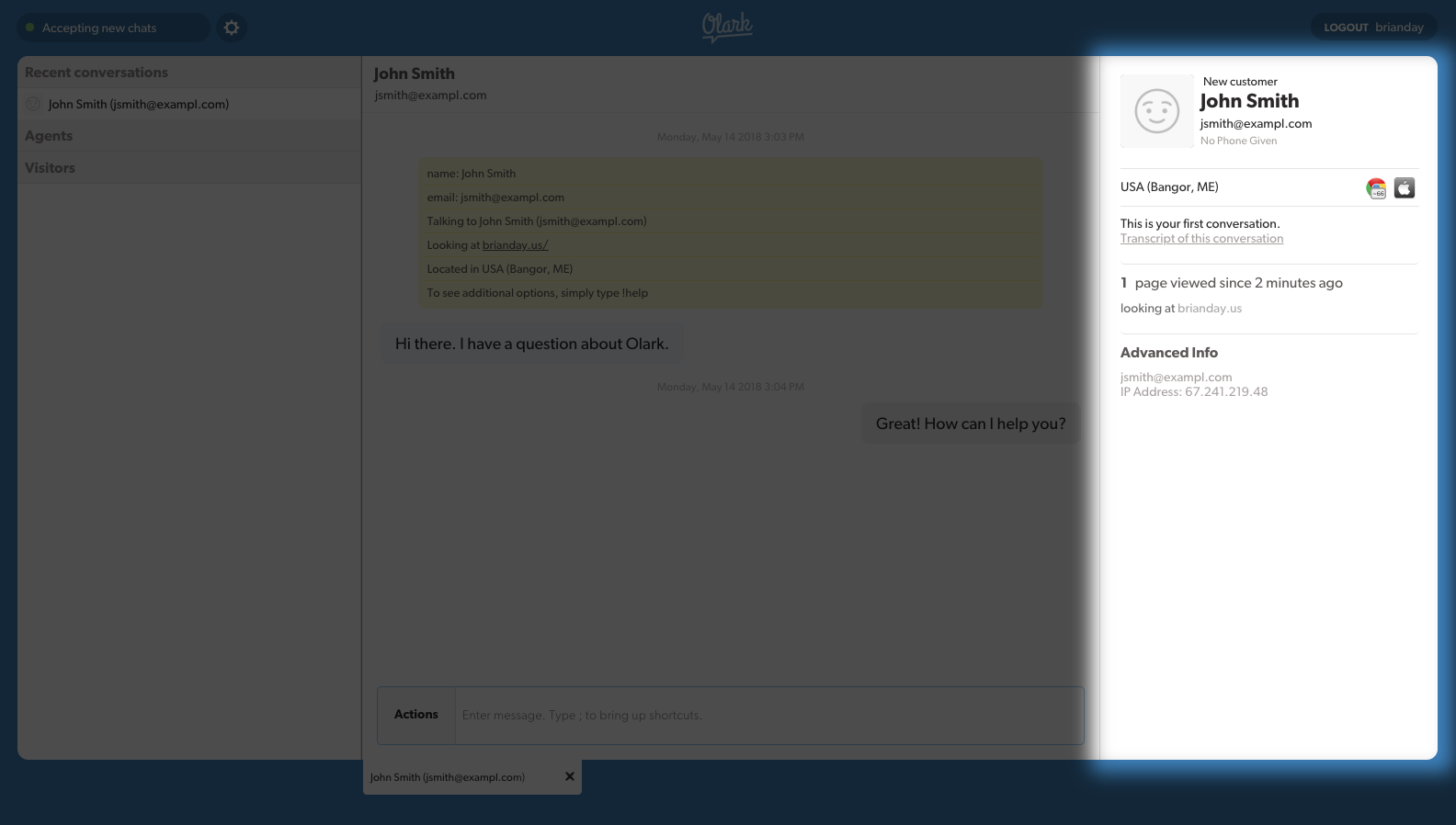
Olark’s technical magic allows you to see visitor details such as.
- Browser e.g. Chrome or Firefox.
- Operating System e.g. Windows or Mac.
- Approximate Geolocation based on their IP address.
- Page View Tracking i.e. the URLs they’ve viewed since landing on your site.
You can also see a visitor’s Name , Email , and Phone Number if one of the following conditions is met.
- Your organization has the pre-chat survey enabled.
- The visitor had previously left that information when sending an offline message.
- If your company’s developers used our API to display visitor insights in the chat console.
Your Olark Dashboard
Open the Olark dashboard in a new browser tab, so you can follow along as we explain section by section.
Transcripts
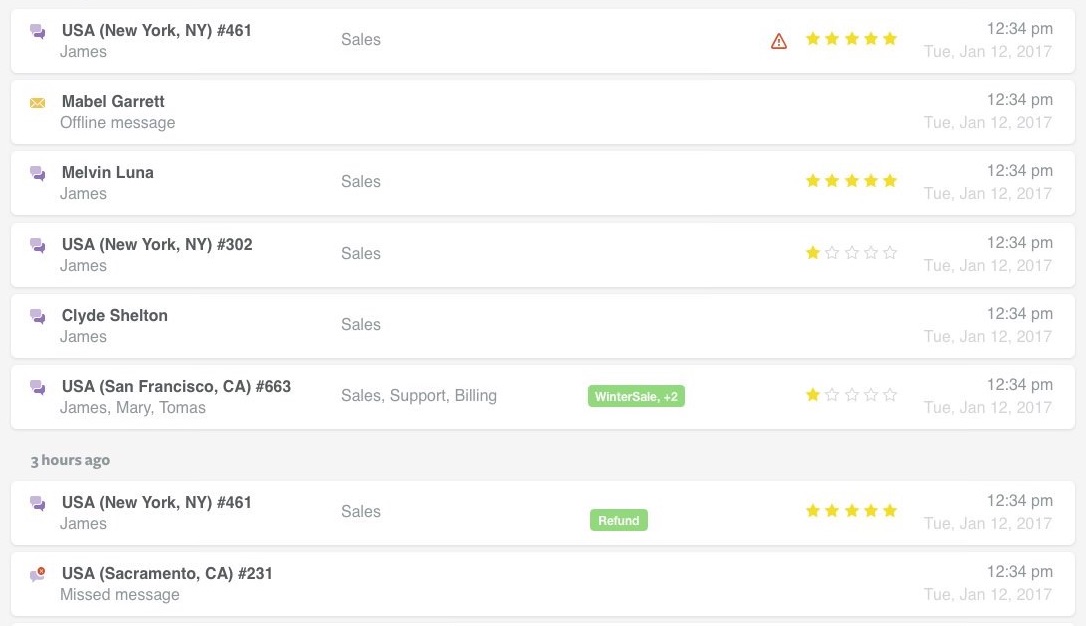
Olark saves all of the chats each agent has had in the Transcripts section for later review.
The icons we show to the left of the transcripts indicate what type of interaction took place for each entry. A single speech bubble icon next to a transcript indicates only one party sent a message (either the agent or the visitor). The two speech bubble icon indicates a conversation took place. Finally, an envelope icon indicates an offline message sent by the visitor.
Each chat transcript has a unique URL, which you can see after clicking through to an individual transcript. You can use the URL to share links to transcripts with your other agents.
Reports
If your organization has Chat Ratings enabled, then your visitors will be able to rate their experience with you at the end of the chat. The Reports section is where you can view their feedback.
Account administrators will be able to see the Reports of all agents. Agent accounts will only see their own Chat Ratings. This differs from viewing Transcripts, where any agent can read any transcript for review purposes. You can learn more in our Chat Ratings guide.
Agent Profile
You can access your profile by clicking your display name in the top right and then clicking Profile.
Your display name is the name that your visitors will see. Visitors will never see your username.
You can also upload a profile picture for yourself. It should be 100x100 pixels in size. It will be displayed alongside the first message you send to every visitor.
Your Organization’s Olark Settings
There are two levels of user roles – adminstrators and agents.
Administrators can view and change all settings. Agents are limited to the following actions.
- Chatting to visitors.
- Viewing chat transcripts for all chat agents.
- Viewing their own chat ratings.
- Editing their personal shortcuts.
However, there are many settings that your account administrator has control over which agents can’t change but should still be aware of.
It is a good practice to ensure your organization’s administrators have considered each of these settings.
- Which CRM integration are we using (if any)?
- Which chat routing option (i.e. All Agents or Round Robin) are we using?
- Do we have a chat limit set, and if so what is it?
- Do we have Chat Ratings set up to get feedback from visitors?
- Do we have any Automation Rules set up?
- Do we have an Offline Message set up?
- Do we have any Groups set up, and do I belong to any of them?
Pre-Chat Checklist
- Set your display name and profile picture in your Profile.
- Choose an alert sound via the gear icon in the Chat Console.
- Set up desktop notifications.
- Create some personal shortcuts.
- Familiarize yourself with important commands like
!transfer,!transcript,!endand!send.
If you have any questions, please reach out by sending us a chat message or an email. We are always happy to help!