What it is
Real-time Tags & Alerts tells the right person about an important moment while the chat is still happening: a buyer asking for a quote, a visitor who wants a person, a customer about to cancel. You describe the moment in plain English. When a chat matches, Olark can tag it, notify the agent in the chat, email the transcript, or post to Slack.
It’s included on every plan and works with or without an Ai Assistant. You’ll find it on your Behavior settings page, between Routing to Team Members and After the chat.

Start from a template
Click a template to open a pre-filled rule, adjust it, and click Save rule.
- Help buyers while they’re ready: tags the chat
sales, alerts the agent in the chat, and emails your team when a visitor wants to buy or book a demo. - Contact leads immediately: tags
contact-capturedand emails your team when a visitor shares an email address or phone number. - Catch broken promos during a launch: tags
campaign-issueand emails your team when a visitor says a code, offer, or link isn’t working. - Never leave a visitor waiting for a person: tags
wants-personand emails your team so someone can step in.
Support teams can add their own, for example: The visitor asks to cancel, close their account, or get a refund. Tag it churn-risk and email your customer success lead.
Create a rule
- On the Behavior page, click New rule, or pick a template.
- Under When, describe the moment in one sentence (up to 100 characters).
- Under Then, choose at least one action, then click Save rule.
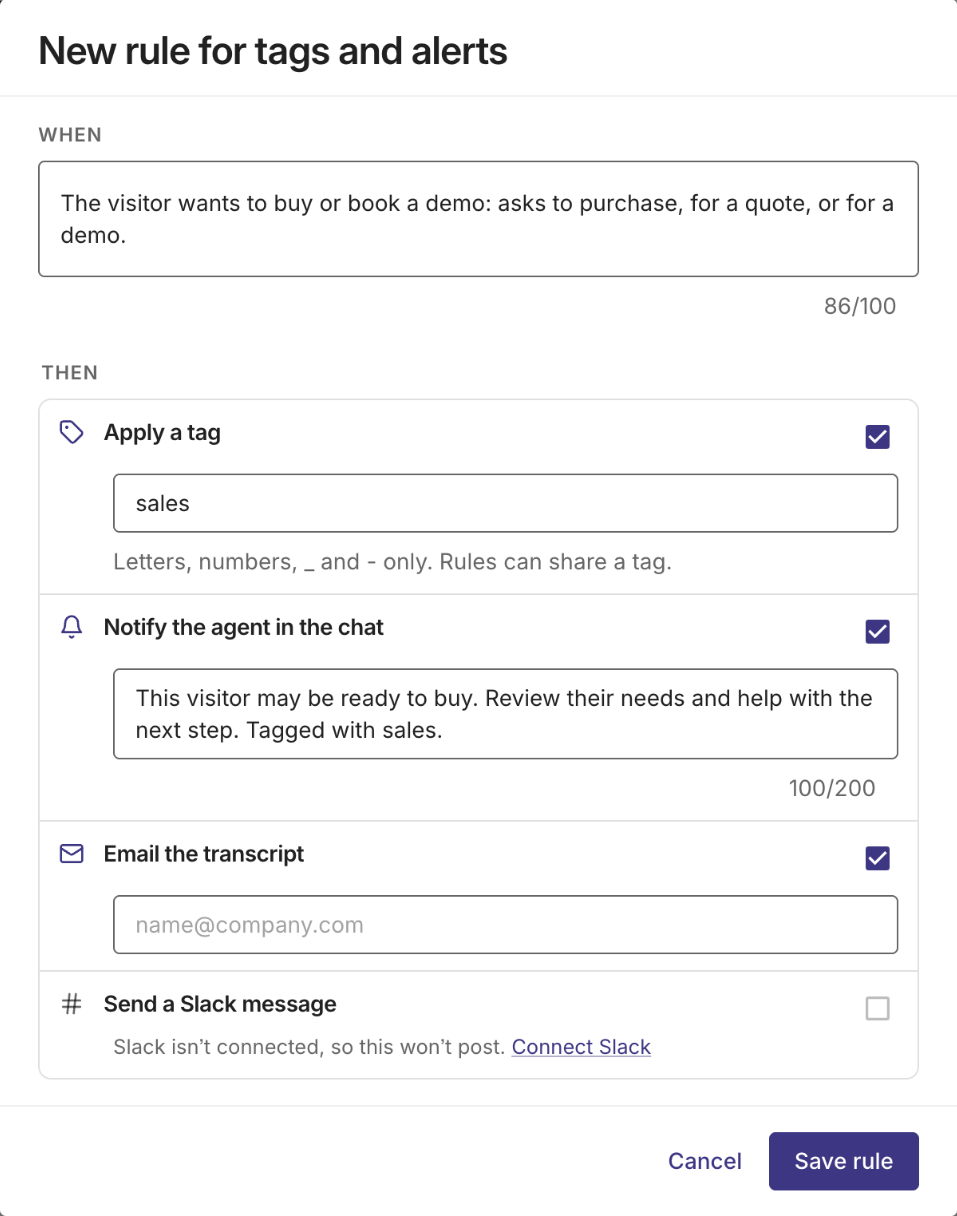
You can have up to 4 rules. Need more? Email support@olark.com. To change a rule, click it. To delete it, open it and click Remove rule.
The actions
- Apply a tag: letters, numbers, _ or -, with no spaces. Rules can share a tag.
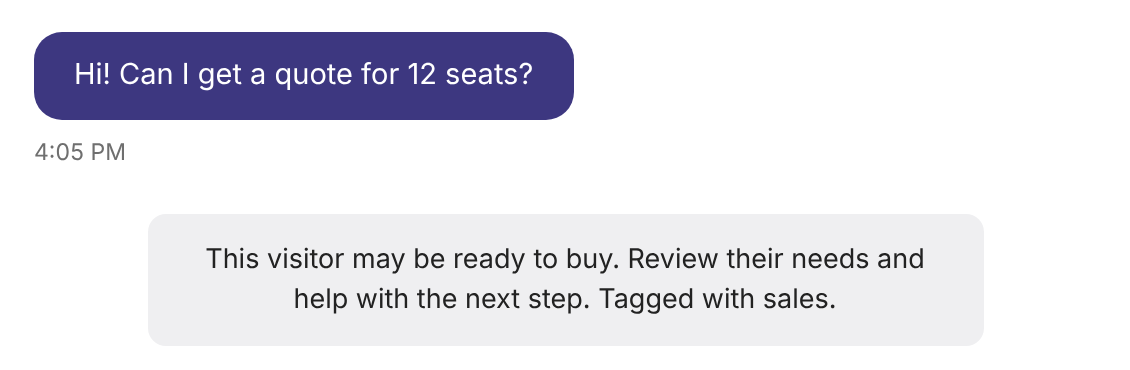
- Notify the agent in the chat: a message of up to 200 characters, shown in the chat to the team member handling it. If your Ai Assistant is chatting on its own, no one sees it, so pair it with Slack or email.
- Email the transcript: the chat so far, with the visitor’s details, sent to one address. Use a shared inbox to reach a team.
- Send a Slack message: a message of up to 200 characters, posted to the channel set under Send transcripts to this channel on your Slack integration page. The rule editor tells you if Slack isn’t connected or has no channel.
Here’s how a note to the agent looks in the chat:
Tag, alert, or both?
Alert when someone should act now. Tag when you want to find or count chats later. Filter tagged chats with the Tags dropdown on your Transcripts page, or count them with the Olark MCP server.
How rules run
- Each rule is checked on its own, so one chat can match several. A tag already on a chat isn’t added again.
- Rules start checking once the visitor sends their first message, so an Ai Assistant greeting, an agent’s opening message or a page change won’t trigger a rule on its own. After that, rules check after each Ai Assistant reply or new chat message. A form the visitor submits is checked with the next message; once a person has taken over the chat, that’s usually the agent’s reply.
- Offline messages (when no one is online) aren’t checked. They go to your follow-up email under After the chat.
- After the chat emails still arrive when a chat ends, so one chat can send you two emails. See Ai Assistant Follow-up Emails.
Tips for writing a good “When”
- Describe what the visitor asks, not keywords: asks for a quote also catches “can you price this out?”
- Say what doesn’t count: Do not count questions about existing orders.
- Choose things visitors say, not moods.
- Keep to one idea per rule.
What if an alert didn’t arrive?
- Slack: check that Slack is connected and a transcript channel is chosen on your Slack integration page.
- Agent note: check that a team member was in the chat when it matched.
- Email: check the address on the rule and your spam folder.
Still stuck? Email support@olark.com with the chat’s transcript link.