What it is
Every Olark account has one primary admin, shown as the Account Owner on your Team Management page. The account owner can transfer ownership to any other active user on the account. Once you transfer ownership, you become an admin. To learn what each role can do, see User Types.
Before you start
- You must be the current account owner. Only the account owner can transfer ownership.
- The new owner must be an active user. If they aren’t on your team yet, invite them and wait for them to accept before you transfer ownership.
Transfer ownership
-
Log in as the current account owner.
-
Go to the Team Management page.
-
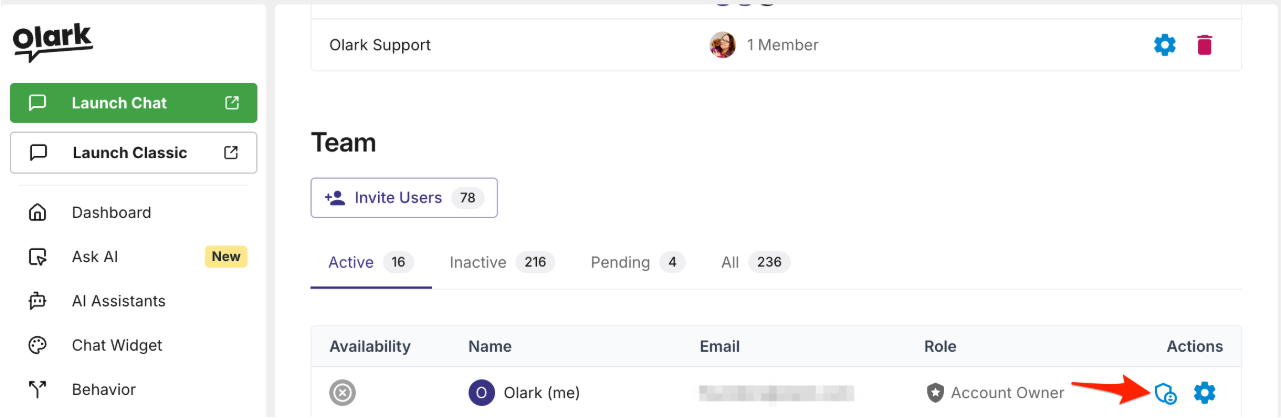
Find yourself in the Team table.
-
Click the shield icon to the right of your name, under Actions.
-
Under New account owner, select the user you want to make the account owner.
-
Click Transfer.
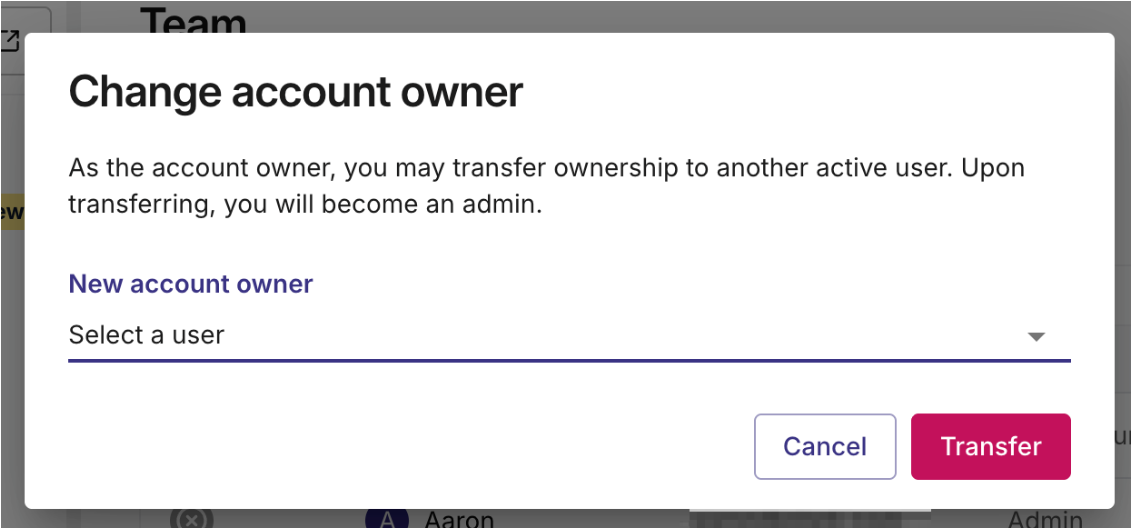
The new owner now appears as the Account Owner in the Team table, and your role changes to Admin.