This page is for IT and security teams reviewing the Olark MCP server before people in your organization connect it to an AI app such as Claude, ChatGPT, or Microsoft Copilot Studio.
Need a file to share? Download this page as a PDF.
Last updated: October 30, 2026
At a glance
- What it is: a connector that lets the AI apps your team already uses pull chat reports from Olark and edit Olark bots.
- Address:
https://mcp.olark.com/mcp(HTTPS only). - Sign-in: each person signs in with their own Olark login. There are no shared passwords, API keys, or service accounts.
- Scope: one Olark site, the one that person belongs to.
- Reporting is read-only. It can’t change, delete, or send chats.
- Bot changes are limited. Only admins and account owners get bot tools, and those tools can only change draft bots. A live bot is never edited in place.
- Personal information: an Olark admin can turn on masking of names, email addresses, phone numbers, card numbers, and US Social Security numbers. Masking happens on Olark’s servers, before reporting results are sent to the AI app.
Terms used on this page
- AI app: the AI product a person chats with, such as Claude, ChatGPT, or Microsoft Copilot Studio. Another company makes it, not Olark.
- MCP (Model Context Protocol): an open standard that lets AI apps use tools from other products. The Olark MCP server is Olark’s set of these tools.
- Tool: one action an AI app can ask Olark to do, such as “search transcripts.”
- Bot: an Olark chatbot that answers visitors on your website. Olark’s own screens list bots under AI Assistants.
- Draft bot and live bot: a draft is a bot still being worked on. A live bot is turned on for your website. The MCP server can’t change a live bot.
- Knowledge source: information a bot uses to answer questions, such as your website or a written FAQ.
- Olark site: one Olark account’s chats, bots, and team. Each Olark login belongs to one site.
- OAuth and sign-in token: OAuth is the standard way an app gets permission to act for a signed-in person. The sign-in token is the proof of that permission, which the AI app sends with each request.
- Masking: replacing personal details, such as an email address, with a placeholder before data leaves Olark. Olark’s settings call this Redact personal information.
How a request works
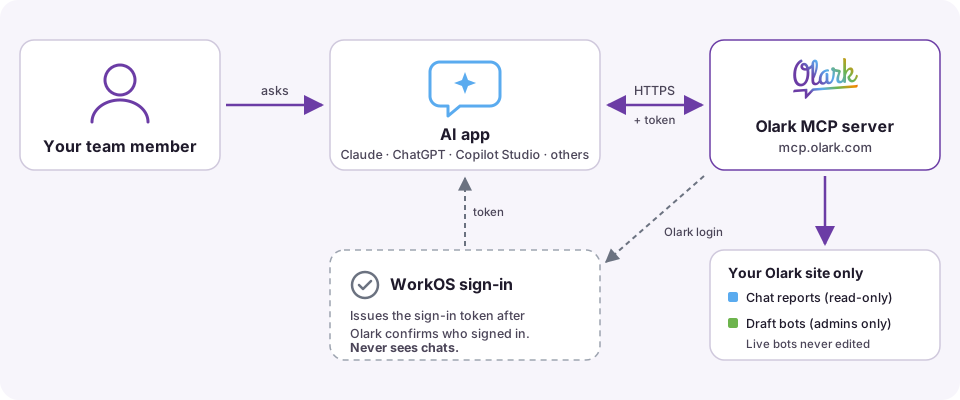
- A person asks their AI app a question, such as “What did customers ask about pricing last week?”
- The AI app decides which Olark tool to use and sends a request to
mcp.olark.com, along with that person’s sign-in token. - Olark checks the token, looks up the person’s current Olark account and role, and only offers tools that role allows.
- Olark runs the tool on that person’s site. If masking is on, Olark masks personal information before the result leaves Olark.
- The AI app receives the result and writes its answer.
Olark only sees the tool requests. It doesn’t see the rest of the person’s conversation with their AI app.
What the AI app can do
The AI app can only use the tools below. Which ones a person gets depends on their Olark role.
Chat reports (read-only, every Olark role)
| Tool | What it returns |
|---|---|
| Search transcripts | Chats filtered by words, visitor name, visitor email, tags, and dates. Includes the conversation text, transcript links, times, tags, and the visitor’s first page when known. Up to 100 chats per request. |
| Transcript details | The same data as the dashboard’s transcript CSV export: timing, visitor and agent fields, tags, custom fields, feedback, and transcript links. No message text. Up to 2,000 rows per request. |
| Agent activity | Availability, chats, missed chats, response times, ratings, and status history for each agent. |
| Visitor funnels | Counts of website visitors who complete a series of steps, grouped by hour, day, or week. |
Important: anyone with an Olark login on the site, including the basic Agent role, can use these reporting tools for the whole site.
Bot reading (every Olark role)
- List the site’s bots, both drafts and published bots.
- Read a bot’s settings: its name, company name, tone, behavior, and whether it is live.
- List the knowledge sources a bot uses.
Bot editing (admins and account owners only)
- Create a draft bot from a website address, by copying an existing bot, or from settings the person provides. When a bot is created from a website, Olark reads that public website using OpenAI, which is already one of Olark’s subprocessors.
- Update a draft bot’s name, company name, tone, behavior, and settings such as contact-capture fields and proactive messages.
- Add or remove knowledge sources on a draft bot: a website domain the bot can search, or text written in Markdown.
- Make a preview link so someone can try a draft bot in their browser.
- Publish a draft bot. This makes it available in Olark. It doesn’t put the bot on your website. Someone still has to turn it on in Olark.
A live bot is never changed in place. To change one, the AI app has to copy it into a new draft first.
Each tool tells the AI app whether it only reads or makes changes. Many AI apps use this to ask the person before making a change, and some let you turn individual tools off.
What it can’t do
- Delete or edit chats, contacts, tags, agents, or account settings
- Send messages to website visitors
- Read or change anything on another Olark site
- Put a bot on your website
- Read data from your CRM or other apps
Limits
| Limit | Value |
|---|---|
| Reporting requests | 60 per hour for each Olark site. Everyone on the site and all four reporting tools share this limit. Olark raises it to 500 per hour for a small number of high-volume sites. |
| If the limit can’t be checked | Reporting requests are refused rather than allowed through. |
| Search transcripts | Up to 100 chats per request |
| Transcript details | Up to 2,000 rows per request |
| Visitor funnels | Up to 6 funnels and 500 time periods per request |
| Agent activity | Counted in whole days, in UTC |
| Bot changes | Draft bots only, on the person’s own site |
Sign-in and WorkOS
Each person connects with their own Olark login, using OAuth, which is the standard way apps get permission to act for a signed-in person.
Olark uses WorkOS to run the OAuth part of sign-in. WorkOS is a sign-in service used by many software companies. Here is what it does and doesn’t do:
- The person signs in on Olark’s own login page, the same way they normally sign in to Olark: email and password, Google, Microsoft, or their company’s SSO. WorkOS never sees their password or SSO credentials.
- After Olark confirms who they are, Olark tells WorkOS the person’s Olark user ID, email address, and name.
- WorkOS then gives the AI app a signed sign-in token for that person.
- WorkOS never receives chats, transcripts, reports, or bot settings. Those go straight from Olark to the AI app.
On every request, Olark checks the token’s signature and looks up the person’s Olark account and role.
Personal information and masking
Chat transcripts often include visitors’ names, email addresses, and phone numbers. By default, reporting results are returned as they appear in Olark.
An Olark admin can turn on Redact personal information on the AI Connector page. This applies to the whole site. When it is on:
- Olark masks names, email addresses, phone numbers, card numbers, and US Social Security numbers in reporting results before they leave Olark.
- If masking fails for any reason, Olark returns an error instead of the unmasked result.
Masking reduces what reaches the AI provider, but it is automated and can miss details or mask the wrong text. It doesn’t guarantee that no personal information reaches the AI provider. Masking doesn’t apply to bot tools.
What happens to the data after Olark sends it
Olark sends each result only to the AI app that asked for it. After that, the AI provider’s terms decide how the result is stored, how long it is kept, and whether it is used to train models. These usually depend on the plan your organization has with that provider. Review your provider’s terms:
What Olark records
To run the service, Olark records each tool request: the site, the person’s Olark user ID, the tool name, and the inputs the AI app sent, such as search words and dates. Olark also counts requests and errors by tool and by site. These records are not a report your team can view.
Common questions
Does the AI app get access to our whole Olark account?
No. It only gets the tools listed above, for one site, under one person’s login. It can’t reach account settings, billing, agents, or other Olark sites.
Can a team member see more through the AI app than they can in Olark?
Possibly. The reporting tools cover the whole site for every Olark role, including the basic Agent role. If some agents shouldn’t see all of your site’s chats, decide whether to let them connect an AI app.
Can it change or delete our chats?
No. The reporting tools only read. Nothing in the MCP server deletes or edits chats.
Can we allow chat reports but block bot changes?
Yes. Bot editing is only available to admins and account owners. People with the Agent role get reporting and bot reading only. Some AI apps also let you turn off individual tools.
Can the AI app put a bot on our website?
No. It can publish a draft so it shows up in Olark, but turning a bot on for your website is a separate step someone has to take in Olark.
Is there a shared API key or service account?
No. Every connection is tied to one person’s Olark login.
Can we stop people connecting a personal AI account?
Not from Olark. Olark checks who the person is, not which AI app or account they connect from. Anyone with an Olark login can connect any compatible AI app, including a personal account. Your organization’s AI policy is what controls this. To cut off every connection on your site at once, email support@olark.com.
Does WorkOS see our chats?
No. WorkOS only handles sign-in. It receives the person’s Olark user ID, email address, and name, never chat content.
Does Olark see our conversations with the AI app?
No. Olark only receives the tool requests the AI app sends, such as “search transcripts mentioning refunds from last week.” It doesn’t see the rest of the conversation.
Will our data be used to train AI models?
Olark doesn’t control that. Once the AI app receives a result, your agreement with that AI provider decides whether it can be used for training.
Could text inside a chat trick the AI app?
Chats are written by website visitors, so treat them as untrusted text. Someone could write instructions into a chat hoping an AI app will follow them. To limit the risk, reporting tools only read, bot tools can’t change live bots, and each tool tells the AI app whether it makes changes. Ask people to review changes before approving them.
Is the connection encrypted?
Yes. The server only accepts HTTPS connections at https://mcp.olark.com/mcp.
What happens when a limit is reached?
The AI app gets an error that says the limit was reached, and reporting works again once the hourly limit allows. Bot tools aren’t affected.
How do we disconnect?
Each person removes or disconnects the Olark connector in their AI app. That stops all new requests from it. To cut off every connection on your site at once, email support@olark.com.
Before your team connects
- Choose which AI apps your organization allows, and check their data retention and training terms. Olark can’t limit which AI app or account someone connects, so make this part of your AI policy.
- Decide who should connect. Anyone with an Olark login can connect, and every Olark role can use the reporting tools for the whole site.
- Decide whether to turn on Redact personal information on the AI Connector page.
- If people only need reports, check whether your AI app lets you turn off the bot tools. People with the Agent role never get bot editing tools.
- Make sure people connect the official address,
https://mcp.olark.com/mcp.
Questions from your IT or security team?
Email support@olark.com. We’re happy to help with your review.
About this page
This page explains how the Olark MCP server works as of the date at the top. It is here to help with your review. It isn’t a contract, and it doesn’t change your agreement with Olark. Our Terms of Service and Data Processing Agreement are what govern how Olark handles your data. The MCP server may change over time, and we’ll update this page when it does. Once your AI app receives data from Olark, your AI provider’s terms apply to it.